
Google Cloud Run is a fully managed Google Cloud service that runs your code, function or container without any servers for you to manage. You deploy your app, Cloud Run gives you a secure URL, and it adds or removes copies of your app as traffic changes.
Without a platform like this, running an app can mean setting up a server, installing software, applying security updates, and adding more capacity when traffic grows. Google Cloud Run removes most of that work.
Last reviewed: November 2026
In this guide:
- What is cloud?
- What is Google Cloud Run?
- Why use Cloud Run?
- When to create a Cloud Run service
- Google Cloud Run vs Compute Engine vs GKE
- How to create a Cloud Run service step by step
- Real-time scenarios
- Google Cloud Run pricing
- FAQs
What Is Cloud?
Cloud means using computers, storage and software over the internet instead of owning them yourself. A company such as Google runs the data centers, and you rent what you need.
Think of electricity. You do not build a power plant at home. You switch on the light and pay for what you use. Cloud computing works the same way.
The main benefits are:
- No hardware to buy: You can start without a large upfront cost.
- Pay for use: Your bill follows what you consume.
- Easy scaling: You can add capacity in minutes, or even automatically.
- Global reach: You can run your app in a region close to your users.
Types of Cloud Services
| Type | What you manage | Google Cloud example |
|---|---|---|
| IaaS (Infrastructure as a Service) | Operating system, runtime and app | Compute Engine |
| PaaS and serverless | Only your code or container | Cloud Run |
| SaaS (Software as a Service) | Only your data and settings | Gmail |
What Is Google Cloud Run?
Google Cloud Run is a fully managed platform for running your code, function or container on Google’s infrastructure. You do not create a cluster or manage servers.
Two words are important here:
- Container: A package that holds your code and everything it needs to run. It works like a tiffin box, with the full meal packed inside.
- Serverless: Servers still exist, but Google manages them. You never log in to one or patch it.
You can use any programming language if you can build a container image from it. You do not even need to write a Dockerfile. For Go, Node.js, Python, Java, .NET and Ruby, Cloud Run can build the container from your source code.
Why Use Google Cloud Run?
- No servers to manage: Google handles the infrastructure, so you can focus on your code.
- Automatic scaling: A service can quickly scale out to 1,000 instances, or more with a quota increase.
- Scale to zero: If nobody is using your service, even the last instance is removed.
- Pay for use: With no minimum instances set, an unused service costs nothing to run.
- Secure URL included: Every service gets an HTTPS address on
run.app, and Google manages the certificate. - Safe releases: You can send 10% of users to a new version and roll back if something breaks.
- Works with Google Cloud: It connects to Cloud SQL, Firestore, Cloud Storage, Pub/Sub and more.
Service, Job or Worker Pool?
Before you create anything, choose the correct type. Most beginners need a service or a job.
| Type | Best for | Real example |
|---|---|---|
| Service | Code that answers HTTP requests or events | Website, REST API, mobile app backend |
| Job | Code that does its work and then stops | Nightly report, database migration |
| Worker pool | Always-on background work pulled from a queue | Kafka or Pub/Sub pull consumer |
Google also offers a fourth type, Cloud Run instances, for long-lived single-instance workloads. It was in preview when this guide was written.
When to Create a Google Cloud Run Service
Google Cloud Run is a good choice when:
- You are building a website, REST API or microservice.
- Your traffic goes up and down, or you have quiet periods.
- You want a backend for a mobile app without managing a server.
- Your app stores its data in a database or Cloud Storage, not on the local disk.
- Your app can safely run as many copies at the same time.
Do not choose Google Cloud Run when:
- Your app needs a permanent local file system.
- Your app cannot run as multiple instances.
- One instance needs more than 8 CPUs or 32 GiB of memory.
Google suggests Google Kubernetes Engine for apps that do not fit these rules.
Google Cloud Run vs Compute Engine vs GKE
All three can run your application on Google Cloud. The main difference is how much of the system you want to manage.
| Point | Cloud Run | Compute Engine | GKE |
|---|---|---|---|
| What you get | Managed platform for containers | Virtual machines | Managed Kubernetes clusters |
| What you manage | Your code or container | The operating system and software | Kubernetes workloads and settings |
| Scale to zero | Yes, for services by default | No, you stop or schedule VMs yourself | Depends on your cluster setup |
| Best for | Websites, APIs and scheduled tasks | Apps that need full OS control | Large systems that need Kubernetes features |
Simple rule: Start with Google Cloud Run for a stateless web app or API. Move to Compute Engine or GKE when your app needs something Cloud Run cannot provide.
How to Create a Google Cloud Run Service Step by Step
There are two easy ways. Use the console to see Google Cloud Run working in about a minute. Use the command line to deploy your own code.
Method 1: Create Google Cloud Run in the Console
- Open the Cloud Run page and select your project. Billing must be enabled.
- Select Services, then click Deploy container.
- Keep Deploy one revision from an existing container image selected.
- Click Test with a sample container.
- Enter a service name, such as
hello-cloud-run. - Choose a region. Use
asia-south1(Mumbai) for users in India. - Under Authentication, select Allow public access.
- Click Create and wait for the deployment to finish.
- Copy the URL shown on the page and open it in your browser.
Method 2: Deploy Your Own Code to Google Cloud Run
Now you will deploy a small Python API. It returns the status of an online shop order. You do not need Docker on your computer.
Step 1: Install the Google Cloud CLI and sign in. Install the Google Cloud CLI, then run this command and choose your project:
gcloud initStep 2: Turn on the APIs.
gcloud services enable run.googleapis.com cloudbuild.googleapis.com artifactregistry.googleapis.comStep 3: Give Cloud Build permission to build your app. Run the first command to get your project number. Then replace PROJECT_ID and PROJECT_NUMBER in the second command.
gcloud projects describe PROJECT_ID --format="value(projectNumber)"

gcloud projects add-iam-policy-binding PROJECT_ID \
  --member="serviceAccount:PROJECT_NUMBER-compute@developer.gserviceaccount.com" \
  --role="roles/run.builder"
This permission can take a couple of minutes to become active.
Step 4: Create the project folder.
mkdir orders-api
cd orders-api
Step 5: Create main.py.
import os

from flask import Flask, jsonify

app = Flask(__name__)

ORDERS = {
    "A1001": {"item": "Wireless Mouse", "status": "Packed"},
    "A1002": {"item": "Laptop Bag", "status": "Shipped"},
}


@app.get("/")
def home():
    return jsonify(message="Orders API is running")


@app.get("/orders/<order_id>")
def get_order(order_id):
    order = ORDERS.get(order_id)
    if order is None:
        return jsonify(error="Order not found"), 404
    return jsonify(orderId=order_id, **order)


if __name__ == "__main__":
    app.run(host="0.0.0.0", port=int(os.environ.get("PORT", 8080)))
Step 6: Create requirements.txt.
flask
gunicorn
Step 7: Create a file named Procfile. It has no file extension, and it tells Cloud Run how to start your app.
web: gunicorn --bind :$PORT --workers 1 --threads 8 --timeout 0 main:appStep 8: Deploy the app.
gcloud run deploy orders-api \
  --source . \
  --region=asia-south1 \
  --allow-unauthenticated \
  --max-instances=5
If it asks to enable an API or create an Artifact Registry repository, press y. Here is what each option does:
--source .builds a container from the current folder.--regionchooses where your service runs.--allow-unauthenticatedlets anyone call the URL. Remove it for a private service.--max-instances=5limits how far the service can scale, which helps control your cost.
Step 9: Test your API. The deploy command prints a service URL. Use it in place of SERVICE_URL.
curl SERVICE_URL/orders/A1001You should see this response:
{"item":"Wireless Mouse","orderId":"A1001","status":"Packed"}Step 10: Read the logs.
gcloud run services logs read orders-api --region=asia-south1What Happens After You Deploy to Google Cloud Run?
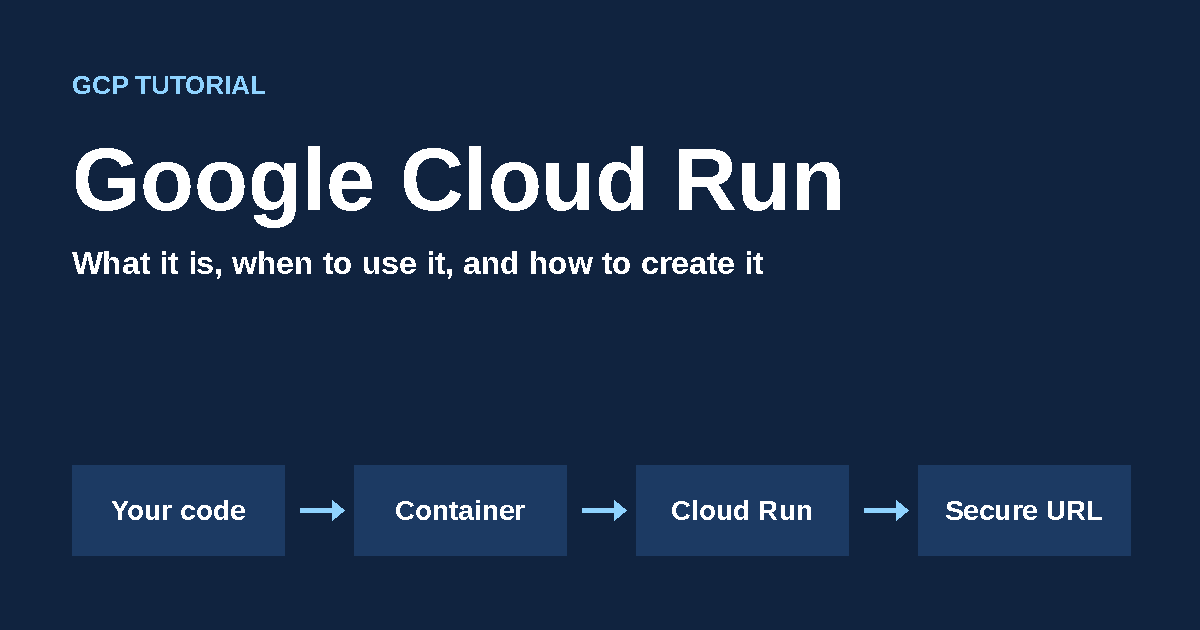
- Cloud Build turns your code into a container image.
- The image is stored in Artifact Registry.
- Google Cloud Run creates a revision, which is a saved version of your service.
- When a request arrives, Cloud Run sends it to a running instance, or starts a new one.
- When the requests stop, Cloud Run removes the idle instances.
Real-Time Scenarios Where Google Cloud Run Is Used
Let us use the same sample online shop from our Google Cloud Workflows guide.
Scenario 1: Backend for a Mobile App
Problem: Customers open your Android app to track their orders. Many people use it in the evening, and very few use it at 3:00 AM. A fixed server would sit idle for hours, and you would still pay for it.
Solution: Deploy the orders-api service from this guide. The app calls the HTTPS URL, Cloud Run adds instances during busy hours, and it can scale to zero during quiet hours.
Scenario 2: Safe Release During a Festival Sale
Problem: You need to release a new version during a Diwali sale. A bug could affect every customer at once.
Solution: Deploy the new version without traffic, then send only 10% of users to it. First, deploy it and find the name of the new revision:
gcloud run deploy orders-api \
  --source . \
  --region=asia-south1 \
  --no-traffic

gcloud run revisions list --service=orders-api --region=asia-south1
Send 10% of users to the new revision. Replace NEW_REVISION with its name:
gcloud run services update-traffic orders-api \
  --region=asia-south1 \
  --to-revisions=NEW_REVISION=10
If the logs look healthy, send all traffic to the new version:
gcloud run services update-traffic orders-api \
  --region=asia-south1 \
  --to-latest
If you find a problem, send all traffic back to the old revision. Replace OLD_REVISION with its name:
gcloud run services update-traffic orders-api \
  --region=asia-south1 \
  --to-revisions=OLD_REVISION=100
Scenario 3: Nightly Report with a Cloud Run Job
Problem: The shop needs a sales report for four stores every night. This work runs and then stops, so it does not need a URL.
Solution: Use a Google Cloud Run job. Two tasks will share the stores, and Cloud Scheduler will start the job every night.
Create a new folder named report-job. Add this main.py file:
import json
import os

STORES = ["Delhi", "Mumbai", "Pune", "Jaipur"]

task_index = int(os.environ.get("CLOUD_RUN_TASK_INDEX", 0))
task_count = int(os.environ.get("CLOUD_RUN_TASK_COUNT", 1))

for store in STORES[task_index::task_count]:
    print(json.dumps({
        "severity": "INFO",
        "message": f"Task {task_index}: report created for {store}",
    }))
Add a Procfile in the same folder:
web: python3 main.pyRun these commands inside the report-job folder to deploy the job and run it once:
gcloud run jobs deploy daily-sales-report \
  --source . \
  --tasks=2 \
  --max-retries=3 \
  --region=asia-south1

gcloud run jobs execute daily-sales-report --region=asia-south1
Google Cloud Run gives every task its own CLOUD_RUN_TASK_INDEX value. Task 0 handles Delhi and Pune, and task 1 handles Mumbai and Jaipur.
To run the job every night at 2:00 AM India time, turn on Cloud Scheduler, create a service account, and allow it to run the job. Replace PROJECT_ID in these commands:
gcloud services enable cloudscheduler.googleapis.com

gcloud iam service-accounts create job-runner --display-name="Cloud Run job runner"

gcloud run jobs add-iam-policy-binding daily-sales-report \
  --region=asia-south1 \
  --member="serviceAccount:job-runner@PROJECT_ID.iam.gserviceaccount.com" \
  --role="roles/run.invoker"

gcloud scheduler jobs create http daily-sales-report-trigger \
  --location=asia-south1 \
  --schedule="0 2 * * *" \
  --time-zone="Asia/Kolkata" \
  --uri="https://run.googleapis.com/v2/projects/PROJECT_ID/locations/asia-south1/jobs/daily-sales-report:run" \
  --http-method=POST \
  --oauth-service-account-email=job-runner@PROJECT_ID.iam.gserviceaccount.com
More Real-Time Uses
| Scenario | Cloud Run type | How it works |
|---|---|---|
| Payment webhook | Service | The payment company calls your URL after each payment. |
| Image processing | Service | A Cloud Storage event starts your code when a file is uploaded. |
| Database migration | Job | A script runs once and stops. |
| Bulk file processing | Job | Many parallel tasks each process part of the files. |
| Order queue consumer | Worker pool | Instances keep pulling messages from Pub/Sub or Kafka. |
Google Cloud Run Pricing
Google Cloud Run services have two billing settings. Request-based billing is the default. Prices can change, so check the official pricing page before you plan a budget.
| Point | Request-based | Instance-based |
|---|---|---|
| You pay for | Time spent handling requests, plus each request | The full lifetime of each instance |
| Best for | Bursty or quiet traffic | Steady traffic |
| Free CPU each month | 180,000 vCPU-seconds | 240,000 vCPU-seconds |
| Free memory each month | 360,000 GiB-seconds | 450,000 GiB-seconds |
| Free requests each month | 2 million | No request fee |
| CPU price after free tier | $0.000024 per vCPU-second | $0.000018 per vCPU-second |
| Memory price after free tier | $0.0000025 per GiB-second | $0.000002 per GiB-second |
| Request price after free tier | $0.40 per million | No request fee |
Simple example: Imagine an API with 1 million requests a month. Each request takes 0.2 seconds on 1 vCPU and 512 MiB of memory, and each one is handled alone.
- Requests: 1 million is within the 2 million free requests, so this costs $0.
- Memory: 100,000 GiB-seconds is within the free tier, so this costs $0.
- CPU: 200,000 vCPU-seconds is 20,000 over the free tier, so this costs about $0.48.
This is a rough estimate for compute only, based on the list prices above. Your real bill also depends on startup time and other services. Cloud Build, stored images in Artifact Registry and internet data transfer can add separate charges.
Google Cloud Run Limits
| Limit | Value |
|---|---|
| Maximum size of one instance | 8 CPUs and 32 GiB of memory |
| Default request timeout | 5 minutes |
| Maximum request timeout | 60 minutes |
| Default concurrent requests, console deployment | 80 per instance |
| Maximum concurrent requests | 1,000 per instance |
| Default job task timeout | 10 minutes |
| Maximum job task timeout | 7 days without a GPU |
Common Google Cloud Run Mistakes to Avoid
- Hardcoding the port: Your app must listen on the port in the
PORTenvironment variable. - Saving files locally: The container file system is temporary. Use Cloud Storage or a database for data that must stay.
- Ignoring cold starts: The first request after a quiet period can be slower. Set
--min-instances=1if this matters, but you will pay even when there is no traffic. - Setting no budget alert: Add a sensible maximum instance limit and a billing budget alert.
- Putting passwords in code: Use Secret Manager for passwords and API keys.
- Making private APIs public: Use
--allow-unauthenticatedonly when the service should be open to everyone.
How to Delete What You Created
After you finish testing, delete the service, job and schedule. Stored container images can still be charged, so also remove the Artifact Registry repository if you no longer need it.
gcloud run services delete orders-api --region=asia-south1

gcloud run jobs delete daily-sales-report --region=asia-south1

gcloud scheduler jobs delete daily-sales-report-trigger --location=asia-south1
Conclusion
Google Cloud Run lets you run a website, API or scheduled task without managing servers. It scales with your traffic, can scale to zero when nobody is using your service, and gives you a secure URL.
Start by deploying the orders-api sample in a test project. Then connect it to a real database, and use the Workflows guide when you need several services to work together.
For the full feature list, read the official Google Cloud Run documentation.
FAQs
Q1: Is Google Cloud Run free?
It has a monthly free tier, and small services may stay within it. You still need to enable billing, and usage above the free tier is charged.
Q2: Do I need to know Docker?
No. You can deploy supported languages from source code, and Cloud Run builds the container for you.
Q3: What is the difference between a Google Cloud Run service and a job?
A service waits for requests and has a URL. A job runs its work and stops.
Q4: What is a cold start?
When no instance is running, Cloud Run must start a new one for the next request. This can make that request slower.
Q5: Can Google Cloud Run use a database?
Yes. It works with Cloud SQL, Firestore, Spanner and other databases.
Q6: Should I use Google Cloud Run or a virtual machine?
Choose Google Cloud Run for stateless apps when you do not want to manage servers. Choose a virtual machine when you need full control of the operating system.