
A few years ago I had a small but annoying job at work. Every evening, our branch teams uploaded a CSV file of the day’s orders, and someone had to load it into BigQuery by hand. If that person was on leave, the reports the next morning were empty. The fix took me less than an hour, and it ran for months without a single complaint. The tool I used was Google Cloud Functions.
In this guide I will explain Google Cloud Functions in plain language: what it is, what it is used for, why teams use it, when you should (and should not) use it, and then we will build that exact real-time example step by step, with code you can copy.
Quick note: in 2024 Google renamed Cloud Functions (2nd gen) to Cloud Run functions. The concept, the code and the gcloud functions commands still work the same way, so I will keep using the name most people search for: Google Cloud Functions.
Table of Contents
Table of Contents
What Is Google Cloud Functions?
Google Cloud Functions is a serverless, event-driven compute service on Google Cloud Platform (GCP). You write one small, single-purpose function in Python, Node.js, Java, Go, .NET, Ruby or PHP, upload it, and Google runs it for you whenever a specific event happens.
Think of it like a light with a motion sensor. The light does nothing all day. The moment someone walks in, it switches on, does its job, and switches off again. You only pay for the electricity while it is on. Google Cloud Functions works in exactly the same way for your code.
- Serverless – you never create, patch or restart a server. Google handles the machines.
- Event-driven – the function wakes up only when something happens (a trigger).
- Auto-scaling – one request or one million, Google adds or removes instances automatically.
- Pay per use – you pay only for the time your code actually runs, and there is a monthly free tier.
Simple definition: Google Cloud Functions is a small piece of code that runs in Google Cloud automatically when an event happens, without you managing any server.
Types of Triggers in Google Cloud Functions
| Trigger | When the function runs | Example |
|---|---|---|
| HTTP | Someone calls the function URL | A mobile app calls an API to send an OTP |
| Cloud Storage | A file is uploaded, deleted or changed in a bucket | Load a new CSV into BigQuery |
| Pub/Sub | A message is published to a topic | Process an order message |
| Firestore / Firebase | A document is created, updated or deleted | Send a welcome email when a user signs up |
| Cloud Scheduler | On a fixed schedule (cron) | Run a daily cleanup job at 2 AM |
| Eventarc | Events from 90+ Google Cloud sources | React when a new VM or BigQuery job is created |
How Google Cloud Functions Works
Behind the scenes, the flow is simple. Once you understand it, debugging becomes much easier.
- You deploy your code with a trigger (for example, “run when a file lands in this bucket”).
- Google packages your code into a container in the background. You never see or manage it.
- An event happens – a file upload, an HTTP call, a Pub/Sub message.
- Google starts an instance of your function (or reuses a warm one) and passes the event data to it.
- Your code runs, finishes, and the instance stays warm for a while in case another event comes.
- If many events arrive together, Google starts more instances in parallel. When traffic drops, it scales back to zero.
That first start, when no warm instance is available, is called a cold start. It usually adds a small delay (often under a second or two for Python). For most background jobs nobody notices. For user-facing APIs you can keep one instance always warm with the --min-instances=1 flag.
1st Gen vs 2nd Gen (Cloud Run functions)
| Feature | 1st gen | 2nd gen / Cloud Run functions |
|---|---|---|
| Built on | Original Functions platform | Cloud Run + Eventarc |
| Requests per instance | One at a time | Many at once (concurrency) |
| Max timeout (HTTP) | 9 minutes | Up to 60 minutes |
| Event sources | Limited set | 90+ sources via Eventarc |
| Recommended for new projects | No | Yes |
My advice: for anything new, always choose 2nd gen. All examples in this post use it.
7 Uses of Google Cloud Functions
Google Cloud Functions is mainly used to connect services and automate small tasks. These are the seven uses I see most often in real projects:
- Data pipelines – load files from Cloud Storage into BigQuery as soon as they arrive.
- Lightweight APIs and webhooks – receive payment gateway (Razorpay, Stripe) or WhatsApp webhooks.
- Image and file processing – create thumbnails, compress images, convert PDFs.
- Notifications – send email, SMS or push notifications when data changes.
- Scheduled jobs – daily reports, deleting old records, refreshing data.
- Data validation – check a file’s format before it enters your warehouse.
- Backend for mobile apps – Firebase apps use functions for server-side logic like sending OTPs or verifying purchases.
Why Do We Use Google Cloud Functions?
The honest answer: because it removes almost all the boring work. You don’t book a server, you don’t install Python on it, and you don’t wake up at 3 AM because it crashed. Here is what that means in practice:
| Reason | What it means for you |
|---|---|
| No server management | No VM setup, OS updates or security patches. |
| Low cost | Pay only when code runs. Small projects often stay inside the free tier. |
| Automatic scaling | Handles a sudden spike in traffic without any work from you. |
| Fast development | Write one function, deploy with one command. |
| Easy integration | Works natively with Cloud Storage, BigQuery, Pub/Sub, Firestore and Firebase. |
| Built-in security | Uses IAM and service accounts to control who can call it and what it can access. |
For a solo developer or a small team, this is a big deal. In my own side projects, Google Cloud Functions handles webhooks and small background jobs for almost nothing per month.
When to Use Google Cloud Functions (and When Not To)
✅ Use Google Cloud Functions when:
- The task is small and single-purpose (one job per function).
- The work is triggered by an event – file upload, message, database change, HTTP call.
- Traffic is unpredictable or low – you don’t want to pay for an always-on server.
- Each run finishes quickly (seconds to a few minutes).
- You want to glue GCP services together without building a full application.
❌ Avoid it when:
- You need a full web application with many routes → use Cloud Run.
- You process very large data (GBs to TBs) → use Dataflow or Dataproc.
- You need multi-step workflows with retries and branching → use Cloud Workflows or Cloud Composer.
- The job runs for a very long time → use Cloud Run jobs or a VM.
- You need the lowest possible latency on every request and can’t accept a cold start.
Google Cloud Functions vs Cloud Run vs Dataflow
| Feature | Cloud Functions | Cloud Run | Dataflow |
|---|---|---|---|
| Unit | One function | Full container / app | Data pipeline |
| Best for | Event-based small tasks | APIs and web apps | Big batch and streaming data |
| Setup effort | Lowest | Medium (Docker) | Higher (Apache Beam) |
| Data size | Small | Small to medium | Very large |
Real-Time Example: Load CSV Files into BigQuery Automatically
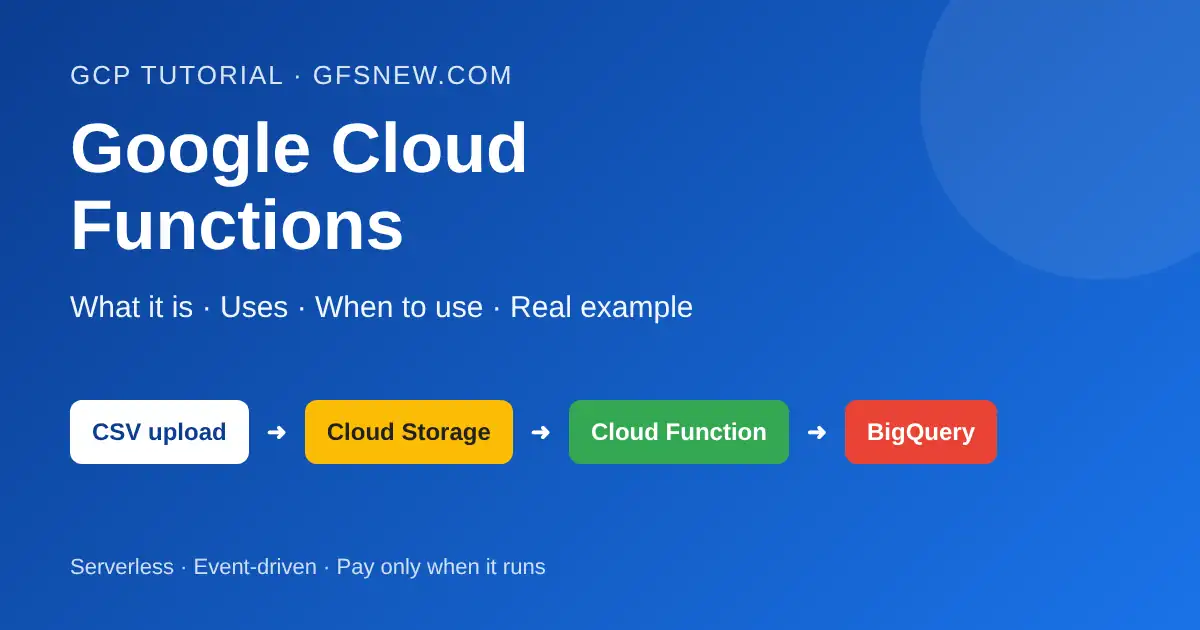
Business scenario: An online store’s branches upload a daily_orders.csv file to a Cloud Storage bucket every evening. The analytics team wants the data in BigQuery immediately, without anyone running a manual load. This is the same problem I described at the start, and Google Cloud Functions solves it in about 30 lines of code.
Flow:
Branch uploads CSV  ──►  Cloud Storage bucket  ──►  Cloud Function (triggered)  ──►  BigQuery table
   (daily_orders.csv)       (my-sales-bucket)          (load_csv_to_bq)              (sales.daily_orders)
Step 1: Create the bucket and BigQuery dataset
gcloud storage buckets create gs://my-sales-bucket --location=asia-south1
bq --location=asia-south1 mk --dataset my-project:sales
Step 2: Write the function (main.py)
import functions_framework
from google.cloud import bigquery

client = bigquery.Client()
TABLE_ID = "my-project.sales.daily_orders"

@functions_framework.cloud_event
def load_csv_to_bq(cloud_event):
    data = cloud_event.data
    bucket = data["bucket"]
    file_name = data["name"]

    # Process only CSV files
    if not file_name.endswith(".csv"):
        print(f"Skipping non-CSV file: {file_name}")
        return

    uri = f"gs://{bucket}/{file_name}"

    job_config = bigquery.LoadJobConfig(
        source_format=bigquery.SourceFormat.CSV,
        skip_leading_rows=1,          # skip header row
        autodetect=True,              # detect schema automatically
        write_disposition=bigquery.WriteDisposition.WRITE_APPEND,
    )

    load_job = client.load_table_from_uri(uri, TABLE_ID, job_config=job_config)
    load_job.result()  # wait for the job to finish

    print(f"Loaded {load_job.output_rows} rows from {uri} into {TABLE_ID}")
Notice that the BigQuery client is created outside the function. When an instance stays warm, the next run reuses that client, which makes it faster.
Step 3: Add requirements.txt
functions-framework==3.*
google-cloud-bigquery
Step 4: Deploy the function
gcloud functions deploy load-csv-to-bq \
  --gen2 \
  --runtime=python312 \
  --region=asia-south1 \
  --source=. \
  --entry-point=load_csv_to_bq \
  --trigger-event-filters="type=google.cloud.storage.object.v1.finalized" \
  --trigger-event-filters="bucket=my-sales-bucket"
Tip: The function runs with a service account. Give that service account the BigQuery Data Editor, BigQuery Job User and Storage Object Viewer roles. Read our Service Account and IAM guides for details.
Step 5: Test it
# Upload a file — the function runs automatically
gcloud storage cp daily_orders.csv gs://my-sales-bucket/

# Check the function logs
gcloud functions logs read load-csv-to-bq --region=asia-south1 --limit=20

# Check the data in BigQuery
bq query --use_legacy_sql=false "SELECT COUNT(*) FROM sales.daily_orders"
That’s it. Every time a branch uploads a CSV, the rows appear in BigQuery within seconds. No manual work, and no server running all day.
Bonus: A Simple HTTP Function
Here is the smallest possible HTTP function, useful as a quick API or webhook:
import functions_framework

@functions_framework.http
def hello(request):
    name = request.args.get("name", "World")
    return f"Hello, {name}!"
gcloud functions deploy hello-http \
--gen2 --runtime=python312 --region=asia-south1 \
--source=. --entry-point=hello \
--trigger-http --allow-unauthenticatedOpen the URL shown after deployment and add ?name=Kartik to see the response.
More Real-Life Examples
The CSV loader is just one pattern. Here are a few more places where Google Cloud Functions fits perfectly:
- Payment confirmation: Razorpay sends a webhook to an HTTP function after a successful payment. The function verifies the signature and marks the order as “paid” in Firestore.
- Profile photo resize: A user uploads a 5 MB photo in your Android app. A storage-triggered function creates a 200 px thumbnail so the app loads faster.
- Welcome email: A new user document is created in Firestore. A function sends a welcome email using SendGrid or Gmail API.
- Daily sales report: Cloud Scheduler calls a function at 8 AM. It runs a BigQuery query and emails the result to the manager.
- Cleanup job: Every night, a function deletes files older than 30 days from a temporary bucket to save storage cost.
Google Cloud Functions Pricing and Free Tier
Pricing for Google Cloud Functions (2nd gen) follows Cloud Run pricing. You are billed for three things:
- Requests – the number of times the function is called.
- Compute time – vCPU and memory used while your code runs.
- Networking – outbound data sent to the internet.
There is a generous monthly free tier that includes around 2 million requests plus a fixed amount of free CPU and memory time. For learning, personal projects and small business jobs like our CSV loader, you will often pay nothing. Prices change from time to time, so always confirm on the official Cloud Run pricing page.
Watch out: setting --min-instances to 1 or more keeps an instance running all the time, and you pay for it even when nothing is happening.
Advantages and Disadvantages
| Advantages | Disadvantages |
|---|---|
| No servers to manage | Cold start delay on the first request |
| Pay only for usage, free tier available | Execution time limits |
| Scales automatically | Not suitable for heavy, long-running jobs |
| Native triggers for GCP services | Harder to debug many small functions |
| Quick to build and deploy | Costs can grow if a function is triggered in a loop |
Best Practices and Common Mistakes
Best practices
- Keep each function small and focused on one task.
- Create clients (like
bigquery.Client()) outside the function so they are reused. - Make functions idempotent – running twice for the same event should not create duplicate data.
- Use a dedicated service account with the minimum permissions.
- Store secrets in Secret Manager, not in code.
- Use Cloud Logging to monitor runs and errors.
Common mistakes I have seen
- Writing output to the same bucket that triggers the function. The function triggers itself again and again – an infinite loop and a surprise bill.
- Using the default service account with Editor access. It works, but it is a big security risk.
- Leaving HTTP functions public with
--allow-unauthenticatedwhen they should be private. - Not handling retries. Event functions can run more than once, so check whether a file was already loaded.
- Putting heavy processing inside a function instead of moving it to Dataflow or a Cloud Run job.
Interview Questions on Google Cloud Functions
- What is a Cloud Function? A serverless, event-driven function that runs automatically on a trigger.
- What triggers are supported? HTTP, Cloud Storage, Pub/Sub, Firestore/Firebase, Cloud Scheduler (via HTTP or Pub/Sub) and Eventarc events.
- What is a cold start? The delay when a new instance starts after the function has been idle. Setting minimum instances reduces it.
- Cloud Functions vs Cloud Run? Functions deploy a single function from source; Cloud Run deploys a full container. Use Cloud Run for complete apps.
- How do you secure an HTTP function? Remove
--allow-unauthenticatedand grant the Invoker role only to trusted service accounts or users. - How do you avoid duplicate processing? Make the function idempotent, for example by storing processed file names and skipping repeats.
Frequently Asked Questions
Is Google Cloud Functions free?
Not fully, but it has a monthly free tier. Most small projects stay within it and pay nothing. You need a billing account to deploy.
Which language is best for Google Cloud Functions?
Python and Node.js are the most popular because they start fast and have the best examples online. If you already work with BigQuery, Python is the natural choice.
Is Cloud Run functions the same as Google Cloud Functions?
Yes. Cloud Run functions is the new name for Cloud Functions 2nd gen. Your old functions keep working, and the deploy commands are the same.
How long can a function run?
In 2nd gen, HTTP functions can run up to 60 minutes and event-driven functions up to 9 minutes. If your job needs longer, use a Cloud Run job or Dataflow.
Can I use Google Cloud Functions with Firebase?
Yes. Cloud Functions for Firebase is built on the same platform and is widely used as the backend for Android and iOS apps.
Conclusion
Google Cloud Functions is the easiest way I know to run code in the cloud without thinking about servers. Use it for small, event-driven tasks such as loading files into BigQuery, handling webhooks, sending notifications and running scheduled jobs. For full applications choose Cloud Run, and for big data pipelines choose Dataflow.
My suggestion: deploy the CSV-to-BigQuery example from this post in your own project today. Once you see your first file load automatically, the whole idea of serverless will click. For deeper details, the official Google Cloud Functions documentation is excellent.